HDR photos on iPhone
iPhones capture and display gorgeous HDR photos — the bright parts of a shot physically glow on the screen. But a regular JPEG won't glow until it carries the right data, and HDR can get lost when you share. Here's how iPhone HDR actually works, and how to make any photo glow on iPhone.
See the difference
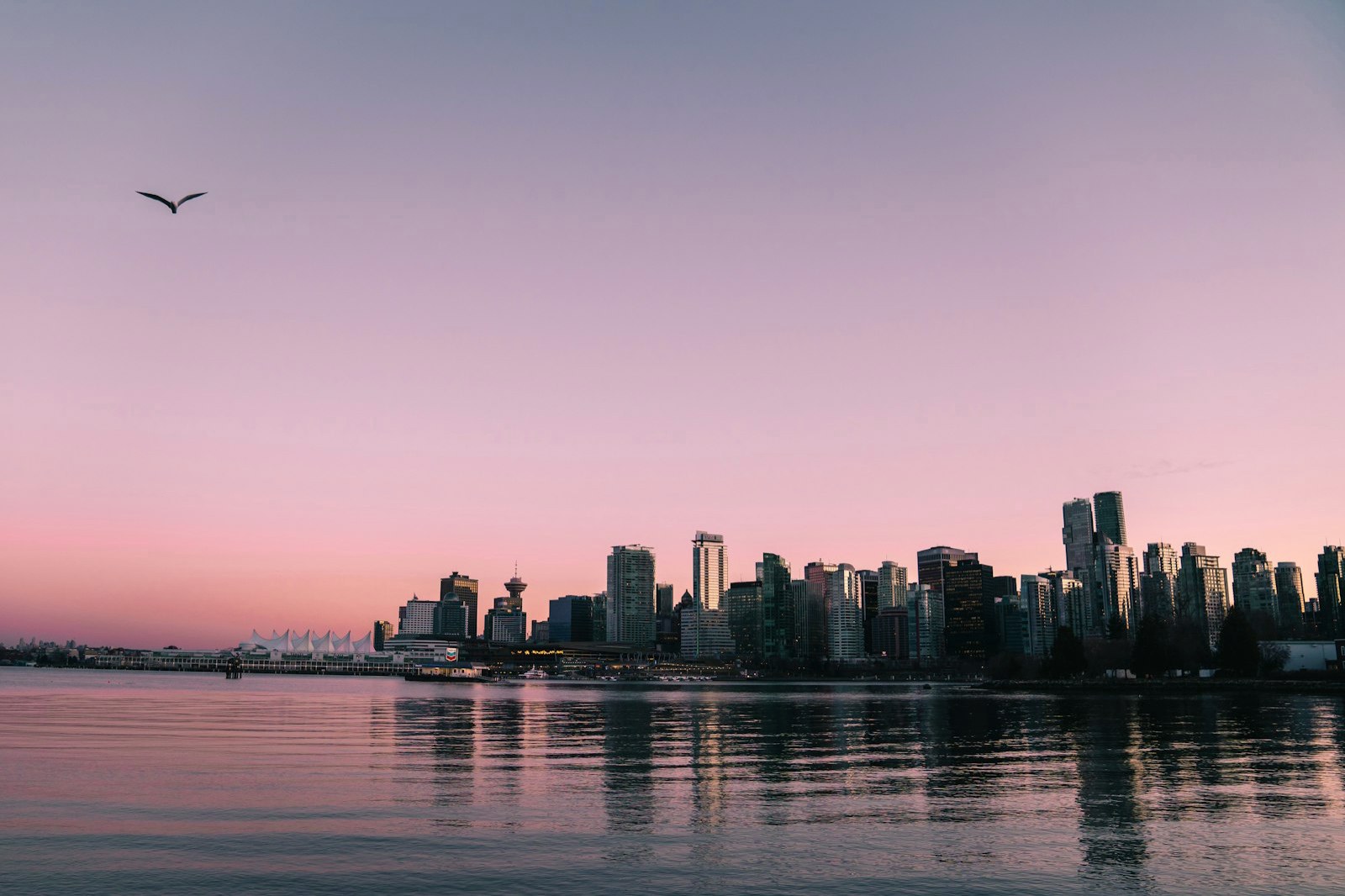
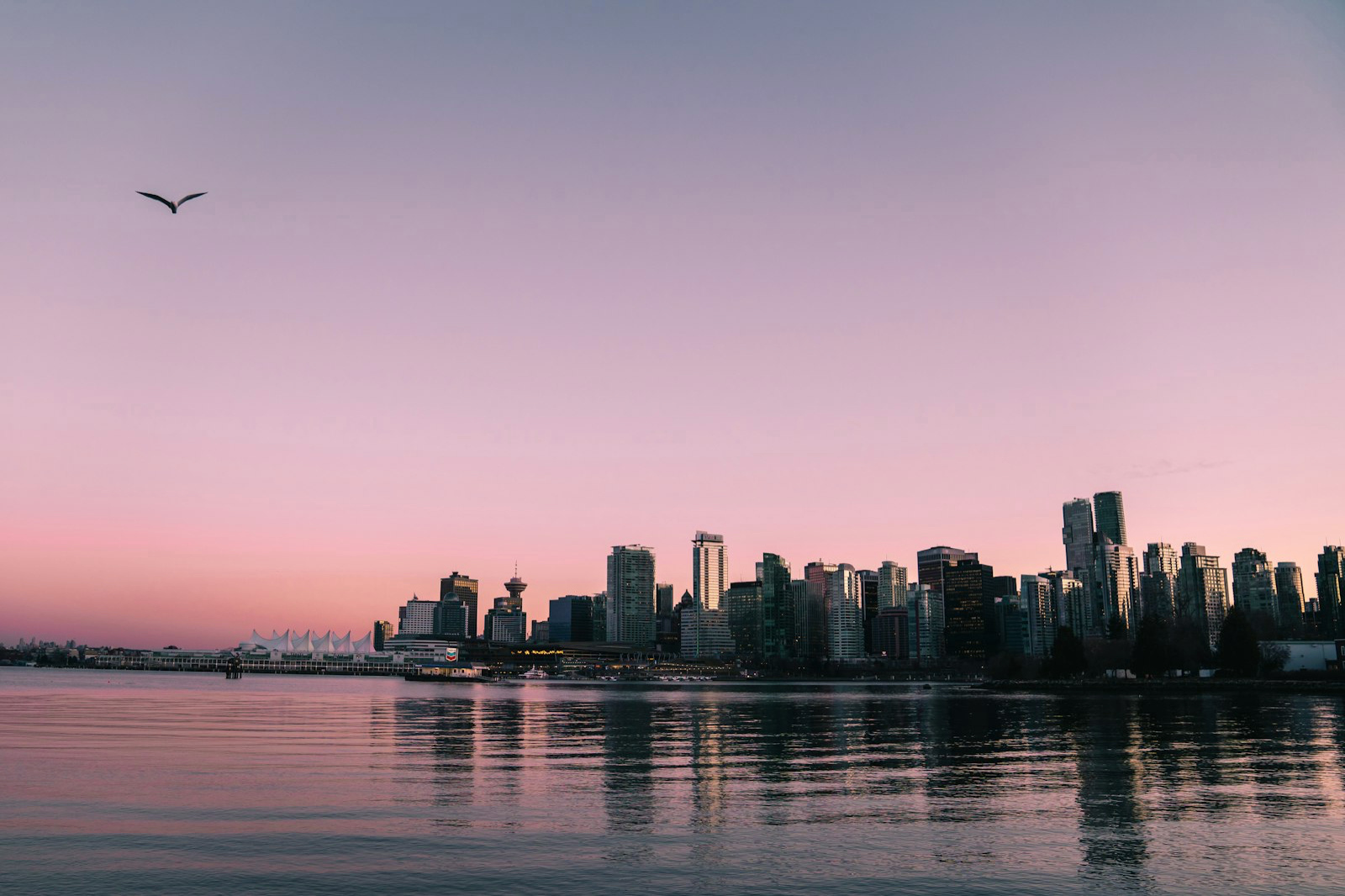
How iPhone HDR photos work
When an iPhone shoots in HDR it saves a gain-map photo: a normal image plus a layer that tells the screen how much brighter to render each highlight. iOS uses the ISO 21496-1 gain-map standard — the same approach as Android's Ultra HDR — so the photo glows in the Photos app and falls back to a normal image on screens that can't show HDR.
Why some photos don't look HDR on iPhone
A standard JPEG — a screenshot, a download, an old photo — has no gain map, so iOS shows it as SDR with no glow. HDR can also be stripped when an app re-compresses an image. If a photo looks flat, it's missing the gain map; converting it to Ultra HDR brings the glow back.
Viewing and sharing HDR on iPhone
HDR photos render in the iOS Photos app, in Safari, and in apps like Instagram. They survive AirDrop and Messages, which keep the gain map, so the photo still glows on the other iPhone. Some third-party chat apps re-compress images and may drop it — share the original file for the strongest result.
How to make any photo HDR for iPhone
Open MakeHDR in Safari on your iPhone, drop a photo (JPEG, PNG or HEIC), pick the HDR strength, and download the Ultra HDR JPG. It computes the gain map locally — no app, no upload, no AI — so the photo glows in Photos and everywhere iOS shows HDR.